How to Create a Normal Map in Photoshop (2026)
Photoshop is still excellent for preparing a texture, but its legacy 3D features—including the old Generate Normal Map workflow—were removed in July 2024. This current workflow uses Photoshop to clean the source, then converts it with a browser-based normal map generator.
Convert a Photoshop Texture to a Normal Map
Finish your texture in Photoshop, export it as PNG or JPG, then open it in the free workspace.
Open Free Converter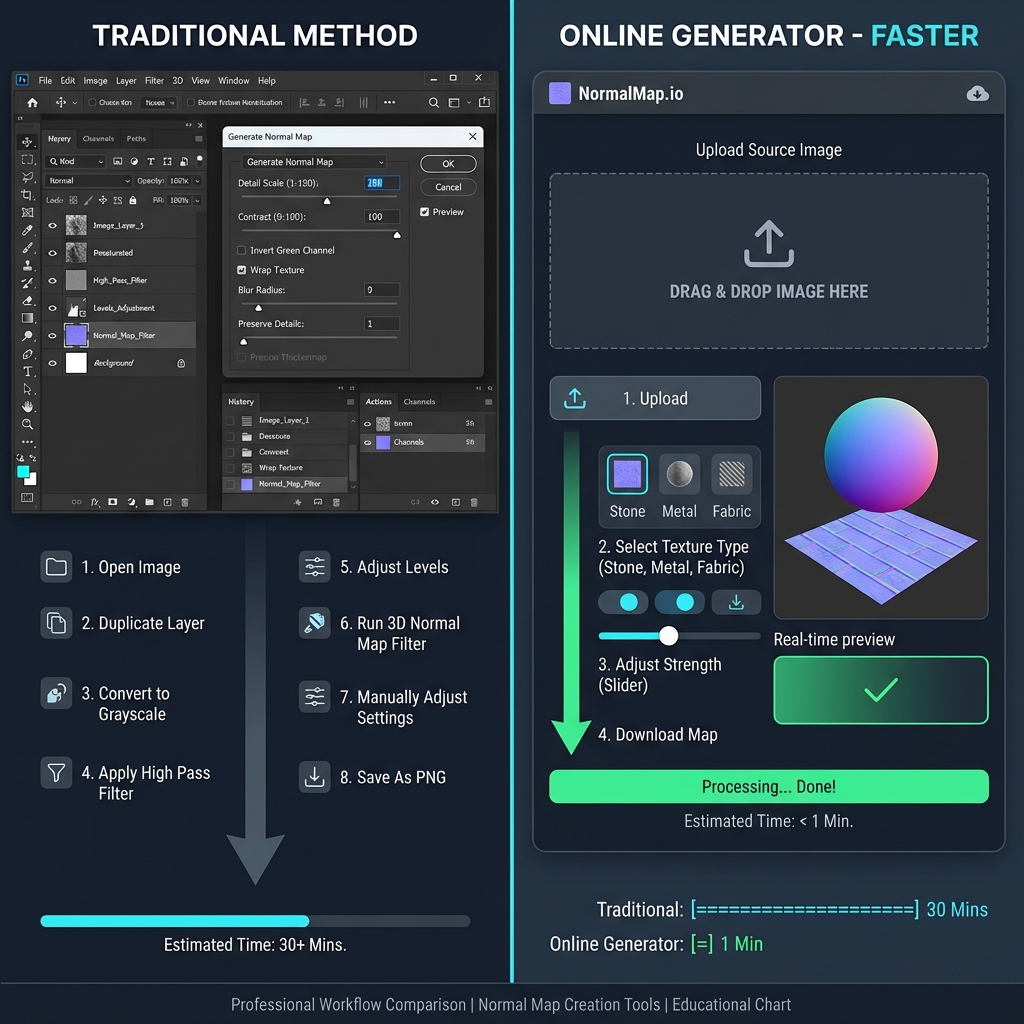
Why the Photoshop Normal Map Filter May Be Missing
Older Photoshop guides point to Filter → 3D → Generate Normal Map. That was a legacy 3D feature. Adobe removed legacy 3D features in July 2024, so do not rely on that menu in a current Photoshop installation.
Current Workflow: Prepare in Photoshop, Convert in the Browser
Use Photoshop for the part it does best: make the source texture predictable before conversion.
- Remove strong directional lighting and shadows where possible.
- Use Levels or Curves to make the intended raised areas lighter and recesses darker.
- Make a tiling texture seamless before conversion if it will repeat on a material.
- Export a PNG or JPG, open it in the normal map workspace, and tune Strength and Blur while previewing.
Ready to Convert?
The workspace processes the exported source locally in your browser and includes a 3D preview.
Launch Free GeneratorWhen Photoshop Is Still the Right Tool
Photoshop is the right place to retouch a photo, paint a dedicated height source, or remove lighting that would otherwise turn into false surface detail.
The browser workspace is the conversion and preview step. It is useful when you want a quick normal map without relying on Photoshop's retired 3D menu.