GIMP Normal Map Filter
GIMP includes a Normal Map filter under Filters → Generic. It creates a normal map from a height map, making it a useful free workflow when you already need to paint or clean the source image.
Need a Browser-Based Alternative?
Open the free workspace to convert a height map or texture locally, preview it in 3D, and save reusable settings.
Open Free Converter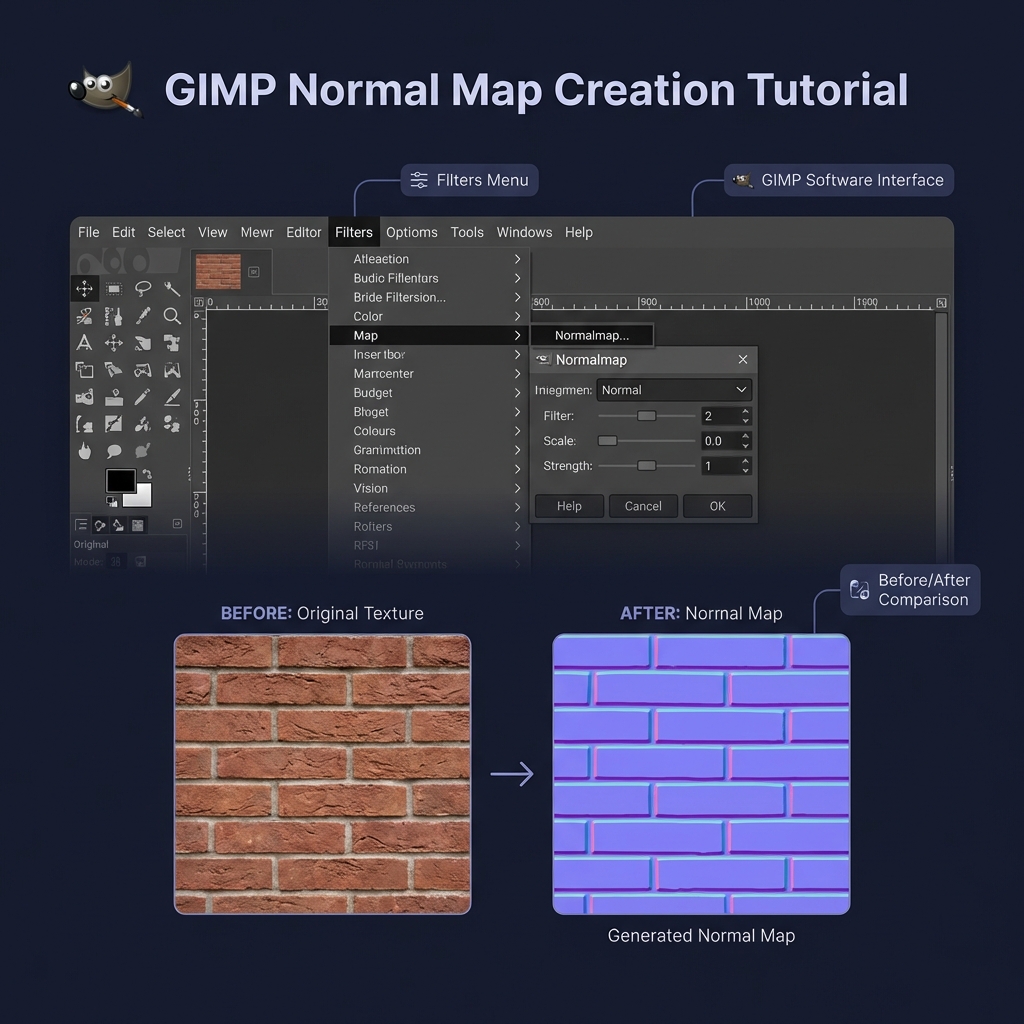
The Free Alternative
GIMP's current Normal Map filter is built into the Generic filters menu. It works most predictably from a grayscale height map, where lighter values are intended to represent raised areas and darker values represent recessed areas.
Step-by-Step Guide
1. Open Your Texture
Launch GIMP and open the image you want to convert. A square, seamless texture is best (e.g., 1024x1024).
2. Open the Normal Map Filter
Navigate to the menu bar: Filters → Generic → Normal Map...
Note: If you don't see this, make sure you have updated GIMP to the latest version.
3. Adjust Settings
A dialogue box will appear with a 3D preview window.
- Scale: Increase slowly; excessive scale makes gentle detail look like steep cliffs.
- Flip X / Y: Use these only if testing in your target application shows the lighting is inverted.
- Tileable: Enable this when the normal map must repeat across a surface.
4. Export
Click OK to apply the filter. Your image will turn purple. Now go to File → Export As... and save it.
Pro Tip: PNG is a safe general export for normal maps. Check the import settings in your target engine after export.
Want a Faster Way?
GIMP is great, but opening a heavy editor just to convert one image can be slow. Try our instant online converter.
Use Online GeneratorGIMP vs Online Tools
When should you use GIMP vs an online generator?
- Use GIMP when: You are already editing the texture, need to combine layers, or paint custom details.
- Use Online Tools when: You just need to quickly convert a file and want an instant 3D preview without loading slow software.